How to Set Up Custom Rules for Bank Transaction Categorization
Most accounting tools rely heavily on these rules to function properly. But with Adam by Tyms, rule-setting is optional . Adam can auto categorize your transactions accurately on its own by learning your spending patterns and behavior.
Temitope Ayegbusi

To set up custom rules for bank-transaction categorization, you simply define conditions (like vendor name, description, channel, or amount) and assign the category the system should use anytime a matching transaction appears. This allows your bookkeeping tool to automatically sort future transactions based on your instructions, reducing the time you spend on manual categorization.
Most accounting tools rely heavily on these rules to function properly. But with Adam by Tyms, rule-setting is optional . Adam can autocategorize your transactions accurately on its own by learning your spending patterns and behavior.
However, for business owners who want extra precision or need to override specific cases, the Train Adam feature lets you set custom rules exactly the way you want.
What Are Custom Categorization Rules and Why They Matter
Custom rules are instructions your software uses to automatically categorize future transactions. They follow the logic: “If a transaction contains X, categorize it as Y.”
These rules matter because many expenses repeat monthly subscriptions, transfers, bank fees, POS charges. Setting one rule ensures every similar transaction gets categorized the same way every time.
How to Decide Which Transactions Actually Need a Rule
Not every transaction should have a rule. Look for patterns like:
- Vendors that appear monthly
- Recurring digital subscriptions
- POS terminals with repeated identifiers
- Transfers that follow a consistent naming pattern
- Bank charges or fees from the same source
This step prevents over-automation and makes sure your rules don’t clash with natural patterns
How to Define the Conditions for a Categorization Rule (With Practical Examples)
Each custom rule begins with defining the condition — the “if this happens…” part. To make it practical, think of it as telling your software:
“When you see a transaction that looks like this, always categorize it as that.”
Here are the most common rule conditions and how to use them in real scenarios:
1. Vendor/Payee Name
Use this when the vendor name consistently appears the same way. Example:
- IF vendor contains “Canva” → Categorize as Software Subscription
- IF vendor contains “Mobil Filling Station” → Categorize as Fuel
This is perfect for recurring subscriptions and fuel purchases.
2. Keywords in the Description
Useful when the vendor name changes but the description contains a unique phrase. Example:
- IF description contains “POS/WEB Purchase – Food” → Categorize as Meals & Entertainment
- IF description contains “Service Charge” → Categorize as Bank Fees
This is ideal for POS terminals or bank charges.
3. Exact Amount or Amount Range
Great for fixed monthly amounts or predictable charges. Example:
- IF amount = #3,200 → Categorize as DSTV Subscription
- IF amount is between #499 – #600 → Categorize as SMS/Alert Fees
Most subscription-based payments show up with the same amount every month.
4. Debit or Credit Type
Useful when separating income from refunds or distinguishing expenses from inflows. Example:
- IF transaction type = Credit AND description contains “Transfer” → Categorize as Business Income
- IF transaction type = Debit AND vendor contains “Paystack” → Categorize as Payment Processing Fees
This helps maintain clean revenue and expense tracking.
5. POS, Transfer, or Online Channel
Handy for grouping similar transactions from the same payment method. Example:
- IF channel = POS AND description contains “Supermarket” → Categorize as Office Supplies
- IF channel = Transfer AND description contains “Salary” → Categorize as Payroll Expense
This works well when your business uses POS frequently or pays vendors via transfer.
How Adam by Tyms Makes All of This Easier
Here’s where Adam stands out: You don’t need rules to get clean, accurate categorization. Adam automatically learns your spending habits and improves over time without you doing anything.
Rules become an optional enhancement — for people who want explicit control over specific transactions. This means you can auto-categorize your transactions with
- Zero setup required
- No technical rules needed
- Accurate categorization from day one
- The Train Adam feature only used when you want extra precision
This gives business owners automation and control without forcing them to build dozens of rules like traditional bookkeeping tools.
Conclusion
Custom rules make your bookkeeping cleaner and more consistent, especially if you handle recurring vendors or predictable expenses. But if you want the fastest and most accurate experience, Adam by Tyms already does most of the work for you, automatically.
Its AI learns your transaction patterns, categorizes your inflows and outflows instantly, and corrects inconsistencies without you ever setting a single rule.
And when you need deeper control, the Train Adam feature lets you create your own rules in seconds.
If you’re ready to spend less time fixing spreadsheets and more time understanding your numbers, get started with Adam today and enjoy clean, accurate, fully auto-categorized transactions from day one.
You can also read:
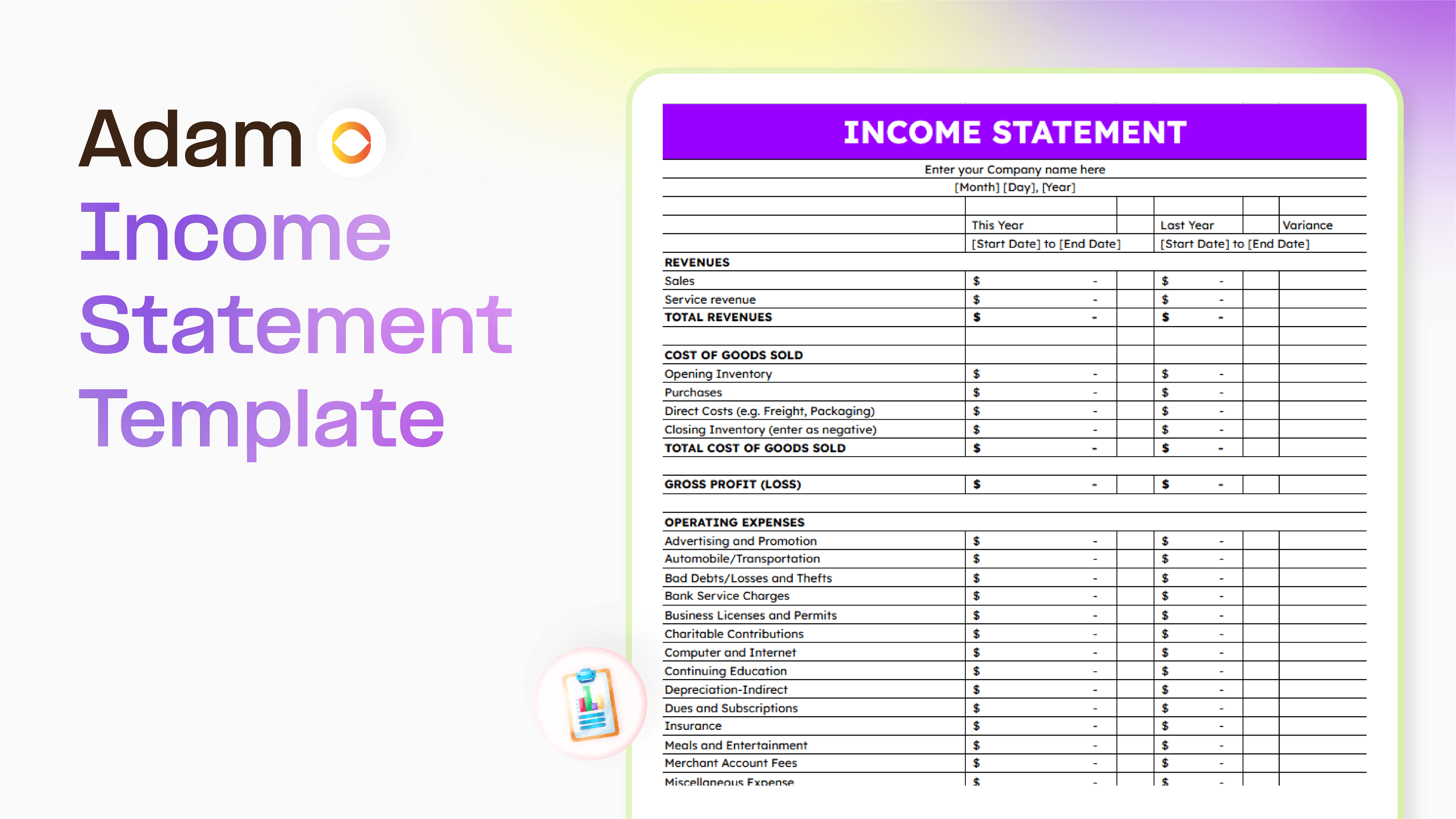
Master your finance with a free Excel Income Statement Template
Using an Excel income statement template isn't just about filling in numbers; it's about getting a clearer picture of how your business is actually doing.
Temitope Ayegbusi
Jan 30, 2026

Accounting Automation Software Features That Actually Matter (For Small Businesses)
This guide breaks down accounting automation software features that truly matter, explains how popular tools approach automation, and helps small business owners understand what to look for before choosing the wrong solution.
Temitope Ayegbusi
Jan 22, 2026